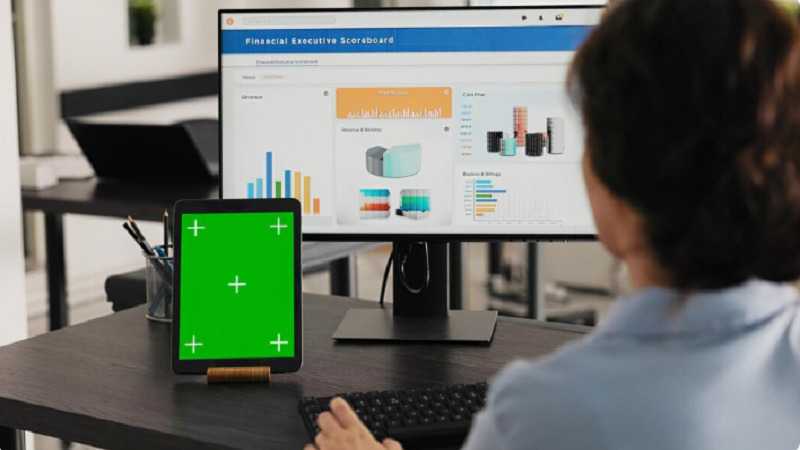
The uploadblog dashboard will be the hub for all registered users upon login, where posts are published, drafts are edited, categories are applied, seo settings are configured, analytics are viewed and money earned are tracked from a single organized interface. It’s created to offer bloggers, writers, freelancers and small business owners full control over their publishing without the technical skills.
The majority of users only make use of a small percentage of its features. That’s the tip of the iceberg, the easy part of logging in, opening the editor and hitting publish. The full dashboard takes it one step further with performance stats, content organization, scheduling controls and monetization tracking that transform a casual publishing practice to a deliberate, results-focused approach.
What You See When You First Log In
The Layout That Organizes Everything in One View
When you log into the uploadblog dashboard for the first time you get a screen split up into well-defined areas that don’t require a lot of dashboard experience to navigate. The left-side nav bar menu has Posts, Drafts, Categories, Profile Settings, Analytics and Earnings – all of which can be accessed directly without having to return to a home page. The main content area updates automatically to the currently active part of the interface, ensuring the interface remains clean.
Getting Your Profile Set Up Before Publishing
The first thing many people do when they log in to the dashboard, but the most important step, is not to open the editor, but to fill out their profile. It will only take you less than 10 minutes to add your author bio, upload a profile picture, add credentials or social links, and add your display name; and these will show on every article they publish from then on. A full profile directly factors into the search engines’ E-E-A-T signals to determine credibility.
Creating and Managing Posts From the Dashboard
From New Post to Published Article in Minutes
To create a post, click on the “New Post” option on the left side of the uploadblog dashboard. After that WYSIWYG will open. You can do formatting in this editor very easily, bold text, headings, and applying links. All features are available in this editor. Right behind the editor there is another section of SEO where you can add meta description, URL Slugs and keywords tag at the same time. With this dashboard you can make drafts, you can schedule the drafts and manage the older versions and new versions also.
Drafts, Scheduling, and Version Control
All unfinished posts remain stored in a recoverable format in the drafts section — pages won’t be closed causing work to be lost. Posts will persist until deleted and can be accessed again from session to session. The scheduling gadget also provides you with the capability to schedule posts at a minute-precise level, which is excellent for retaining a consistent publishing schedule or publishing a couple of posts that you’ve written in a single sitting on multiple days throughout the week.
-
Key Actions Available in the Posts Section
- To create a new post, click on create new post, which will bring up the editor, where you can select all the formatting and SEO tools.
- Edit existing posts — edit any published article back to it to update content or change SEO fields, or to add new sections to it.
- Remove or archive content that has no longer got anything to do with it (without losing content analytics history)
- Schedule future publication — Set deadline and time for future posts to be automatically published
Analytics and Performance Tracking
Understanding What Your Numbers Actually Mean
The analytics tab shows you the number of views, reader metrics, comments and traffic sources for each of your posts. The best practical tool is not overall viewership, but the results of each post, as a measure of the success of each article; knowing which articles receive steady traffic and which do not do as well as expected given the effort made. The comparison helps you to decide on a better topic for your upcoming posts, not just because of random guesses.
Using Data to Improve Future Content
Referrals by domain indicate the origin of traffic, such as search engines, clicks, social media sharing, and traffic from the discovery feed. Posts that have already had organic search traffic have shown that they align with the keyword-topic.Posts that already have organic search traffic have proven to have a keyword-topic alignment that can be replicated. The algorithm is pushing trendy posts with a high number of internal traffic signals.The algorithm is pushing up posts that are trending with a high number of “inbound links”. Both are patterns that can be used as actionable intelligence without having to install or configure a third party analytics tool.
Earnings and Monetization Tracking
How the Dashboard Handles Revenue Visibility
The earnings tab shows a detailed summary of the rewards points earned by users who are participating in UploadBlog’s monetization program as a result of reader activity, such as views, likes, and comments, which correlates to rewards points and monthly earnings. The earnings history provides a breakdown of the revenue sources contributing the highest amount to the earnings and it shows the total balance of all these earnings, which is available for payout. Rewards are calculated monthly based on engagement metrics that are documented, allowing those who are actively engaging to have a clear and verifiable picture of how they are earning rewards.
Final Thoughts
The uploadblog dashboard is much more powerful than most users will realize when they’re just publishing their content. From profile setup through to draft management, post scheduling, SEO completion, analytics and earnings tracking are all integrated into one user interface, the one that encourages users to delve deeper into it than they would if it were merely a post submission tool.
Take time in each section to make sure you don’t have a preconceived notion of what this platform is capable of. What’s the difference between the writers who are always getting their content ranked and their content earning? It’s those who use every tool available — and on UploadBlog, all the tools are available here.
FAQs
What is the uploadblog dashboard used for?
It is the main control panel where you can manage all the publishing activity on UploadBlogs from creating posts to storing them, setting SEO, tracking analytics and earnings.
Can I schedule posts in advance from the uploadblog dashboard?
Yes. The scheduling tool will allow you to set exact times and dates for your content to be published, so it can be published automatically, without the need of being logged in at the time of publication.
Does the dashboard show analytics for individual posts?
Yes. The analytics section provides analytics on a post-by-post basis, including views, engagement indicators, traffic sources and referring domains, which is all essential to understand what content is performing and why.
Is the earnings section of the dashboard available on the free plan?
On Monetization users can track their earnings. You can see the cumulative balance, payout history, and which posts had the greatest impact on your payout.